
This page is used for:
This page is a place where you can store WordPress Blocks that you think are interesting and could have future use in ‘Lego-ing’ together a new page. Instead of creating the page from scratch, you can just copy out the blocks you want to use. Big time saver.
Grey Background
Picture Left or Right
White Background
With or without outling

[hsas-shortcode group=”0″ speed=”15″ direction=”left” gap=”100″]
[hsas-shortcode group=”1″ speed=”25″ direction=”left” gap=”75″]
[hsas-shortcode group=”2″ speed=”20″ direction=”right” gap=”80″]







Picture Carosel
Created by Craig Lawrence / Chelan-Douglas. You can use this to rotate in multiple pictures to highlight your content.
Below is an accordion block with a nested accordion within it.
Here is an example of how it works and how you can add a lot of content choices in a concise format.
Any buttons in the template will need their links changed. Unneeded nested accordions can simply be deleted.
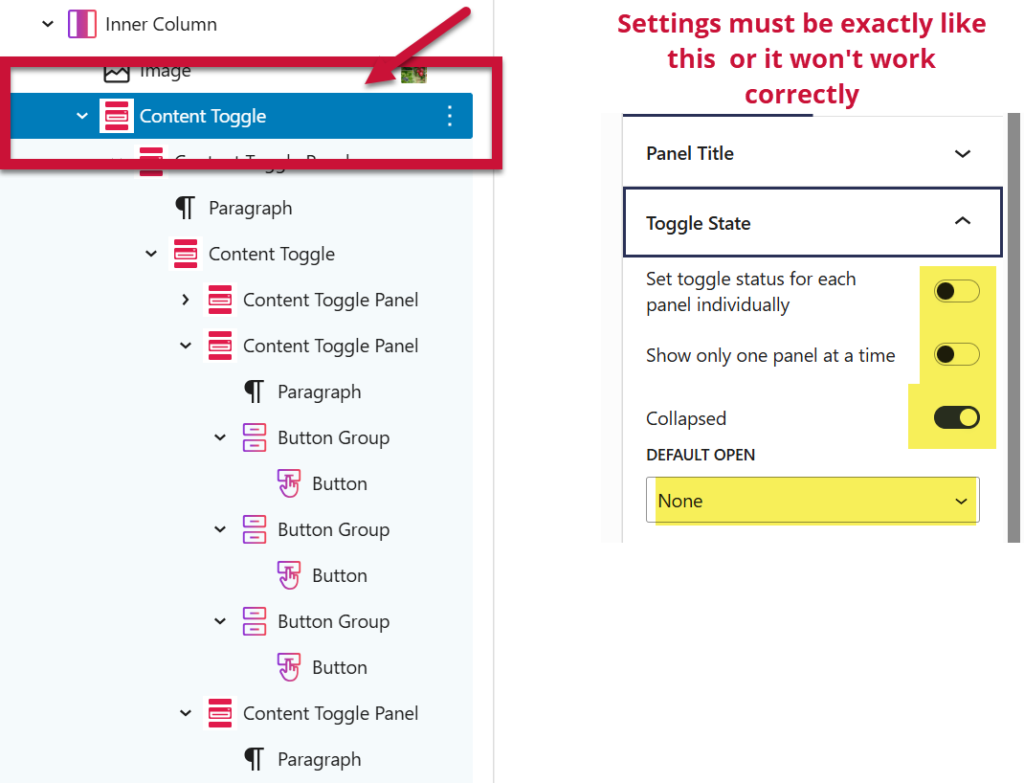
Here are the instructions for creating it from scratch:
This plugin calls the “accordion” block a “toggle” block.
The instructions show you EXACTLY where you need to add a new “toggle block” (accordion). Pay very close attention to which block you’re trying to add it to–otherwise, it won’t work
Be sure to check out the settings on the right–accordions won’t work properly if not set up correctly.
This collection covers
Nested Content 1
Description
Nested Content 2
Description
Nested Content 3
Description
Nested Content 4
Description
Nested Content 5
Description
Nested Content 6
This collection covers
Nested Content 1
Description
Nested Content 2
Description
Nested Content 3
Description
Nested Content 4
Description
Nested Content 5
Description
Nested Content 6
This collection covers
Nested Content 1
Description
Nested Content 2
Description
Nested Content 3
Description
Nested Content 4
Description
Nested Content 5
Description
Nested Content 6

FV
This collection covers
Nested Content 1
Description
Nested Content 2
Description
Nested Content 3
Description
Nested Content 4
Description
Nested Content 5
Description
Nested Content 6

This collection covers
Nested Content 1
Description
Nested Content 2
Description
Nested Content 3
Description
Nested Content 4
Description
Nested Content 5
Description
Nested Content 6
This accordion is a blank and can be re-populated with different links
This accordion is a blank and can be re-populated with different links
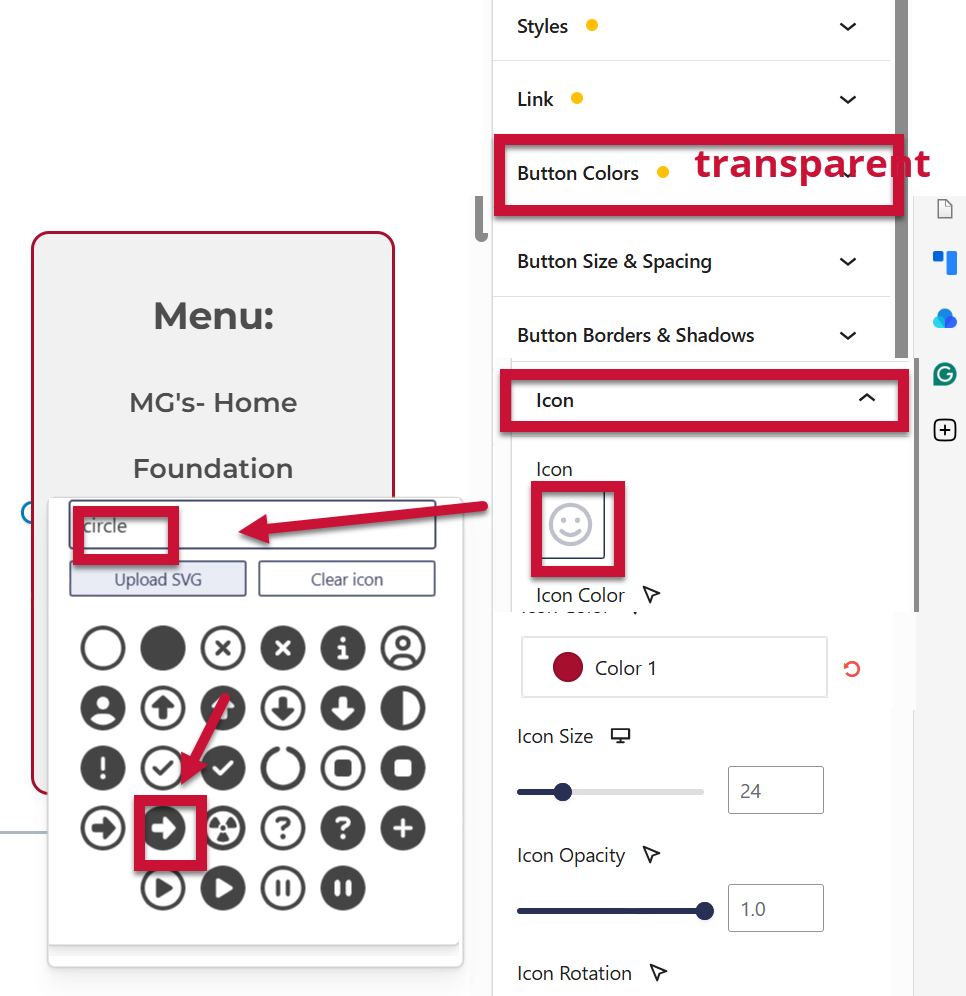
How to create a custom action arrow button for this website
Steps to add a button:
- Navigate to the desired content: Open the post or page where you want to add the button in the WordPress Block Editor.
- Add a new block: Click on the “Add block” icon, which is typically a “+” symbol.
- Search for “Buttons”: In the search bar that appears, type “Buttons” and select the “Buttons” block.
- Add button text: Once the Buttons block is inserted, you will see a placeholder for the button text. Click on it and type the desired text for your button (e.g., “Learn More,” “Contact Us”).
- Add a link: Below the button text, you’ll find a field to paste or type the URL you want the button to link to. Enter the desired URL and click the “Apply” icon (usually a curved arrow or checkmark).
- Customize the button—
To restore a previous version of a page that you’ve edited
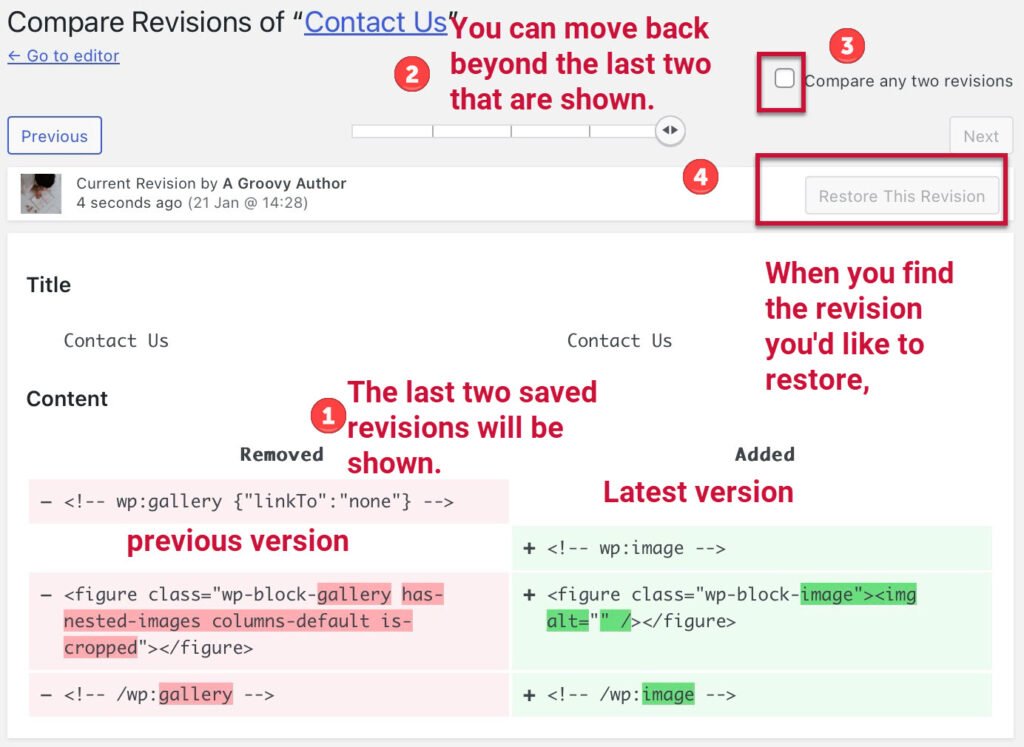
Note: All versions are shown in HTML. If you are not fluent in HTML and the versions look like gobbledygook, just move back to a previous version and restore it. If that’s not the one you want, you can go back further using the same process.
https://wordpress.com/support/page-post-revisions
Open the page, edit mode. On the right panel:
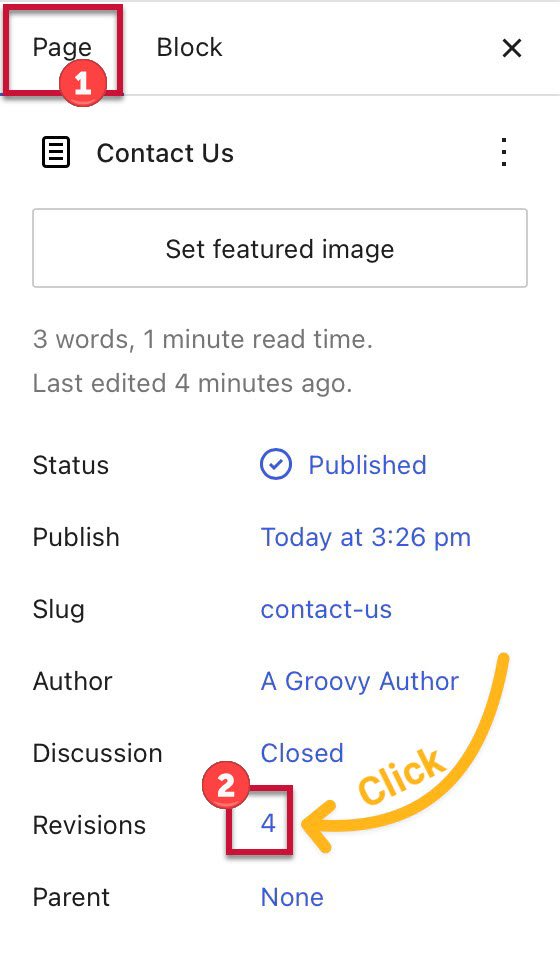
Use the slider to move back to previous versions. Select the “Compare any two revisions” checkbox to view two versions side by side. The most recent version appears on the right, and the earlier version on the left.
From there, you can:
- Click “Restore This Revision” to replace the current content with the version shown on the right.
- Click the “Go to editor” link in the top left to return to editing without restoring anything.
If you accidentally restore an older version, you can repeat these steps to bring back a newer revision—up to the most recent one.
Upcoming Events
Our focus is to provide education on horticulture & environmental stewardship. Weekly workshops and other events you won’t want to miss!